 Drive2pdf
Drive2pdf API
Generate high-quality PDF documents from Google Docs and Sheets templates with advanced data insertion, conditional sections, repeating tables, and dynamic images.
Key Features
- Document Templates — Use Google Docs with placeholders for text, images, conditional sections, and repeating tables.
- Sheet Templates — Use Google Sheets with dynamic cell data, row/column visibility control, and multi-tab export.
- Rich Content — Support for styled text, hyperlinks, and dynamic images.
- PDF Customization — Add watermarks, metadata, and control page size/orientation.
- Secure Storage — Generated PDFs are stored securely and accessible via unique URLs for 24 hours (1-day TTL).
Authentication
All API requests require authentication using your API key. Include the key in the request header:
| Header | Value | Required |
|---|---|---|
api_key |
Your API key | Required |
Content-Type |
application/json |
Required |
Getting Your API Key
Your API key is available in your Drive2pdf dashboard. Keep it secure and never expose it in client-side code.
Base URL
All API requests should be made to:
https://api.drive2pdf.com
Deploying Templates
Before using a template with the API, it must be deployed. Deployment creates a cached mirror of your Google Drive file tailored for high-performance API generation.
Important
Anytime you modify the structure, named ranges, or layout of your source Google Doc or Sheet, you must redeploy the template to update the cache.
How to Deploy
- Go to the Drive2pdf Admin Dashboard.
- Select an existing template, or;
- Click "New Template" to create a template, a Google File Picker will open where you can select your file from your Google Drive.
- On the templates list, click the Deploy button.
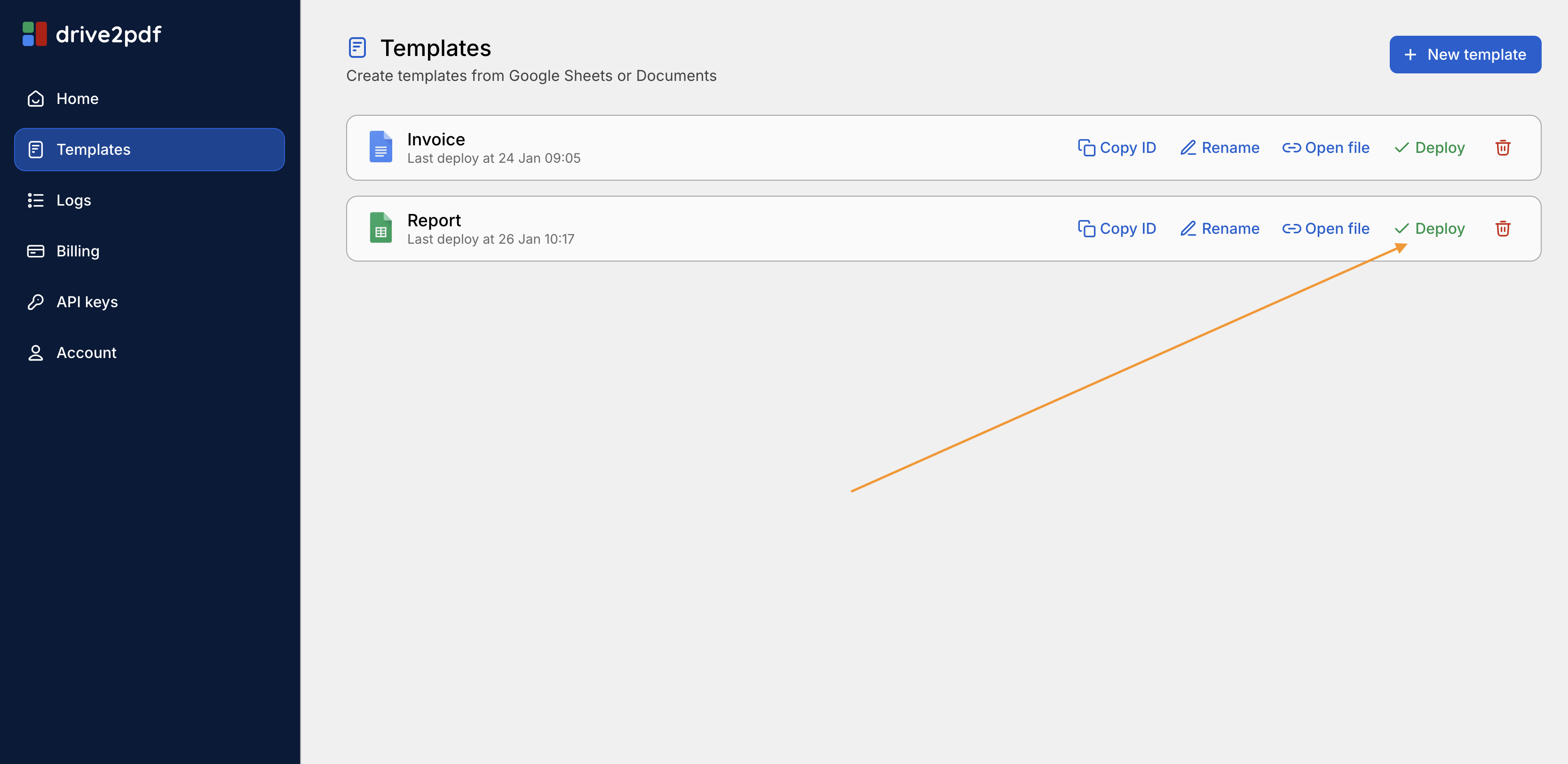
The deployment interface allows you to sync your Drive files with the API.
Document Template Language
Drive2pdf uses a powerful template language for Google Docs that allows you to define dynamic content using placeholders, conditional sections, and repeating tables.
Page Setup
Page orientation, size, and margins are configured directly in your Google Doc template via File → Page setup. The PDF will use these settings automatically.
Text Placeholders
Text placeholders are defined using double curly braces: {{placeholder_name}}. These
are replaced with the corresponding values from your API request.
Template Example
Dear {{customer_name}},

Thank you for your purchase on {{date}}. Your order #{{order_id}} has been confirmed.
API Data
{
  "data": [
    { "key": "customer_name", "value": "John Doe", "type": "text" },
    { "key": "date", "value": "January 22, 2026", "type": "text" },
    { "key": "order_id", "value": "ORD-12345", "type": "text" }
  ]
}
Key Matching
Keys are case-insensitive. {{Customer_Name}} and {{customer_name}} will
both match the key "customer_name".
Multiple Data Types Example
You can mix text and number types in the same request:
{
  "data": [
    { "key": "customer_name", "value": "John Doe", "type": "text" },
    { "key": "order_total", "value": 299.99, "type": "number" },
    { "key": "order_date", "value": "January 22, 2026", "type": "text" },
    { "key": "order_id", "value": "ORD-2026-0001", "type": "text" },
    { "key": "quantity", "value": 5, "type": "number" }
  ]
}
Multi-line Text
Use \n for line breaks within a placeholder:
{
  "key": "address",
  "value": "123 Main Street\nSuite 456\nSan Francisco, CA 94105",
  "type": "text"
}
Conditional Sections
Conditional sections allow you to show or hide entire blocks of content based on a boolean value. Define sections with opening and closing tags:
Template Syntax
{{disclaimer}}
This section will only appear if the "disclaimer" key has show: true.
{{/disclaimer}}
API Data (Hide Section)
{
  "data": [
    { "key": "disclaimer", "show": false, "type": "section" }
  ]
}
If the section key is not provided in the data, the section content will be kept (shown) by default.
Multiple Conditional Sections Example
You can control multiple sections in a single request:
Invoice #{{invoice_number}}

{{has_discount}}
DISCOUNT APPLIED: {{discount_amount}} off your order!
{{/has_discount}}

Total: {{total}}

{{show_bank_details}}
Bank Details:
Account: 1234567890
Routing: 987654321
{{/show_bank_details}}

{{is_overdue}}
⚠️ PAYMENT OVERDUE - Please pay immediately to avoid service interruption.
{{/is_overdue}}{
"data": [
{ "key": "invoice_number", "value": "INV-2026-0042", "type": "text" },
{ "key": "discount_amount", "value": "$50.00", "type": "text" },
{ "key": "total", "value": "$450.00", "type": "text" },
{ "key": "has_discount", "show": true, "type": "section" },
{ "key": "show_bank_details", "show": true, "type": "section" },
{ "key": "is_overdue", "show": false, "type": "section" }
]
}Repeating Tables
Repeating tables allow you to dynamically generate rows based on an array of data. Only the
rows containing placeholders with dotted field notation (e.g.,
{{member.name}}) will be repeated for each item in the array.
Template Structure
Create a normal table in Google Docs. Add a row containing placeholders with dotted notation (e.g.,
{{member.name}}) to define the repeating fields. The API will automatically detect the
repeating rows and the table key (member).
| Name | Role | Age |
|---|---|---|
| {{member.name}} | {{member.role}} | {{member.age}} |
API Data
{
  "data": [
    {
      "key": "member",
      "type": "table",
      "value": [
        { "name": "Sarah Mitchell", "role": "CEO", "age": "34" },
        { "name": "James Chen", "role": "CTO", "age": "29" },
        { "name": "Emily Rodriguez", "role": "Designer", "age": "31" }
      ]
    }
  ]
}
Invoice Line Items Example
A common use case is generating invoice line items:
| Description | Qty | Rate | Amount |
|---|---|---|---|
| {{item.description}} | {{item.qty}} | {{item.rate}} | {{item.amount}} |
{
  "key": "item",
  "type": "table",
  "value": [
    { "description": "Web Development", "qty": "40 hrs", "rate": "$150.00", "amount": "$6,000.00" },
    { "description": "UI/UX Design", "qty": "20 hrs", "rate": "$125.00", "amount": "$2,500.00" },
    { "description": "Project Management", "qty": "10 hrs", "rate": "$100.00", "amount": "$1,000.00" }
  ]
}
Advanced Table Features
- Multi-row headers/footers: Rows without dotted field placeholders are preserved as static headers or footers.
- Row styling: Background colors, text styles, and borders from template rows are preserved in generated rows.
- Independent placeholders: Regular placeholders (not using dotted notation) work normally and are replaced with their values.
Supported Types in Tables
Inside repeating table rows, the following types are supported:
- Supported: Text, Image, RichText, and Links work fully inside table cells.
- Supported: You can use newlines
(
\n) in text fields to create multi-line cell content. - Not Supported: Conditional Sections inside table cells will be ignored.
- Not Supported: Nested tables (tables inside table cells) will not be repeated.
Important: Single Object per Table
Do not mix different objects in the same table row (e.g., {{member.name}} and
{{product.price}}). The API uses the first detected object key to
identify the table. Mixing keys will cause unexpected behavior.
Note on Custom Borders
Custom table borders and borders in merged cells may not be perfectly replicated in generated rows. This is due to a limitation in the Google Docs API, which doesn't always return border styles exactly as they appear in the editor.
Tip: For best results with repeating tables, use simple border styles (uniform borders on all sides) rather than custom per-cell borders. Standard table formatting will be preserved correctly.
Images
To replace images in your template, insert a placeholder image in Google Docs and set its Alt Text title to the key name. The API will replace it with the image from the provided URL.
Setup Steps
- Insert a placeholder image in your Google Doc
- Right-click the image → Alt Text
- Set the Title to your key (e.g.,
logo)
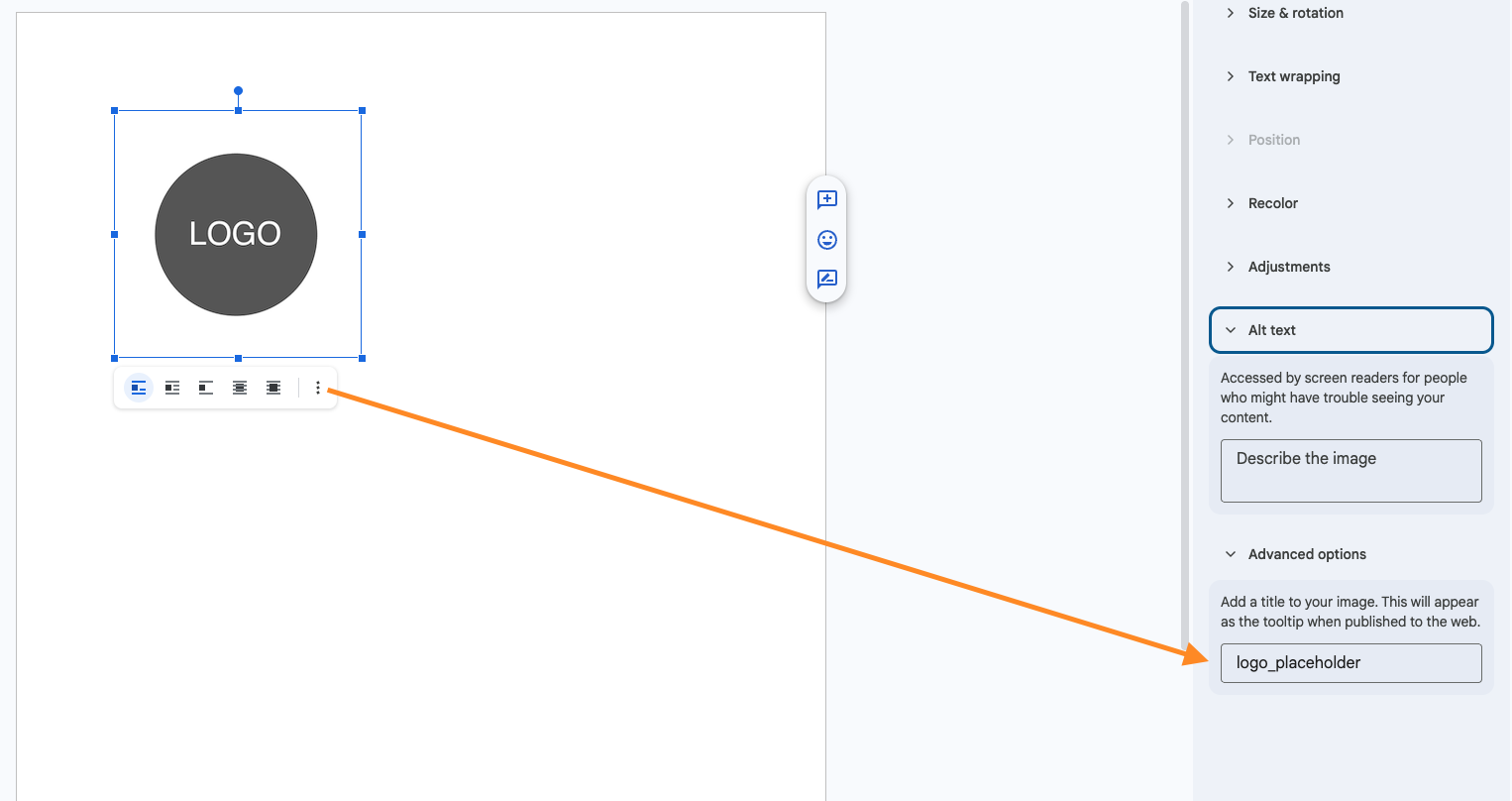
API Data
{
  "data": [
    {
      "key": "logo",
      "value": "https://example.com/logo.png",
      "type": "image"
    }
  ]
}
Advanced: Image with Link
{
  "key": "logo",
  "value": "https://example.com/logo.png",
  "link": "https://example.com",
  "type": "image"
}
Images in Tables
For images inside repeating tables, use the dotted notation for the Alt Text title:
// Alt Text title: member.photo

"value": [
  { "photo": "https://example.com/sarah.jpg", "name": "Sarah" },
  { "photo": "https://example.com/james.jpg", "name": "James" }
]
Image URL Requirements
Image URLs must be publicly accessible without authentication. The API fetches images directly from these URLs during PDF generation. Private URLs, URLs requiring login, or URLs with short expiration times will fail.
Tip: Images as Buttons
Images with links can be used as clickable buttons in your PDF! Add the link
property to make the image clickable.
Multiple Images Example
{
  "data": [
    { "key": "company_logo", "value": "https://example.com/logo.png", "type": "image" },
    { "key": "product_photo", "value": "https://example.com/product.jpg", "type": "image" },
    {
      "key": "cta_button",
      "value": "https://example.com/button.png",
      "link": "https://example.com/signup",
      "type": "image"
    }
  ]
}
Rich Text
Rich text allows you to insert styled text with bold, italic, colors, and more. Use the
richtext type with an array of text segments.
Basic Example
{
  "key": "features",
  "type": "richtext",
  "value": [
    { "text": "Doc to PDF", "bold": true },
    { "text": ": Generate PDFs from Google Docs\n" },
    { "text": "Sheet to PDF", "bold": true, "color": "#6366f1" },
    { "text": ": Generate PDFs from Google Sheets" }
  ]
}
Multi-line Styled Text Example
{
  "key": "product_description",
  "type": "richtext",
  "value": [
    { "text": "Premium Quality\n", "bold": true, "size": 14, "color": "#1a1a1a" },
    { "text": "Our flagship product features:\n", "italic": true },
    { "text": "• ", "bold": true },
    { "text": "Advanced technology\n" },
    { "text": "• ", "bold": true },
    { "text": "Eco-friendly materials\n" },
    { "text": "• ", "bold": true },
    { "text": "5-year warranty" }
  ]
}
Status with Highlights Example
{
  "key": "status_message",
  "type": "richtext",
  "value": [
    { "text": "Status: " },
    { "text": "APPROVED", "bold": true, "color": "#22c55e", "highlight": "#dcfce7" },
    { "text": " - Your application has been ", "color": "#64748b" },
    { "text": "successfully processed", "underline": true }
  ]
}
Richtext with Clickable Links
Use the url property to make text segments clickable:
{
  "key": "contact_info",
  "type": "richtext",
  "value": [
    { "text": "Questions? Contact us at " },
    { "text": "[email protected]", "url": "mailto:[email protected]", "color": "#2563eb", "underline": true },
    { "text": " or visit our " },
    { "text": "Help Center", "url": "https://help.example.com", "color": "#2563eb", "underline": true },
    { "text": "." }
  ]
}
Available Style Properties
| Property | Type | Description |
|---|---|---|
text |
string | The text content |
bold |
boolean | Bold text |
italic |
boolean | Italic text |
underline |
boolean | Underlined text |
strikethrough |
boolean | Strikethrough text |
color |
string | Text color (hex, e.g., #FF0000) |
highlight |
string | Background color (hex) |
size |
number | Font size in points |
url |
string | Make text a hyperlink |
Rich Text in Tables
You can use rich text inside repeating tables for dynamic styled content. Instead of a plain string value, provide an array of styled text segments for the field.
Template Setup
Create a table with placeholders like {{project.status}} and
{{project.notes}}:
| Project | Status | Notes |
|---|---|---|
| {{project.name}} | {{project.status}} | {{project.notes}} |
API Data with Rich Text in Table
{
  "key": "project",
  "type": "table",
  "value": [
    {
      "name": "Project Alpha",
      "status": [
        { "text": "On Track", "bold": true, "color": "#22c55e" }
      ],
      "notes": [
        { "text": "Milestone 1: ", "bold": true },
        { "text": "Completed\n", "color": "#22c55e" },
        { "text": "Milestone 2: ", "bold": true },
        { "text": "In Progress", "color": "#f59e0b" }
      ]
    },
    {
      "name": "Project Beta",
      "status": [
        { "text": "Delayed", "bold": true, "color": "#ef4444" }
      ],
      "notes": [
        { "text": "Blocked by: ", "bold": true },
        { "text": "Resource constraints\n", "color": "#ef4444" },
        { "text": "ETA: ", "bold": true },
        { "text": "Feb 15, 2026" }
      ]
    }
  ]
}
Mixing Plain Text and Rich Text
In the same table row, you can mix plain string values (like "name") with rich text
arrays (like "status" and "notes"). The API detects the type
automatically.
Links
The link type converts a placeholder into a clickable hyperlink with customizable
display text.
{
  "key": "website",
  "type": "link",
  "value": "https://drive2pdf.com",
  "caption": "Visit our website",
  "color": "#0055FF",
  "underline": true
}
Link Properties
| Property | Type | Required | Description |
|---|---|---|---|
key |
string | Required | The placeholder name to replace (e.g., "website" matches
{{website}})
|
value |
string | Required | The URL the link navigates to |
caption |
string | Optional | Display text that replaces the placeholder. If omitted, the URL is shown. |
color |
string | Optional | Text color in hex format (e.g., "#0055FF") |
underline |
boolean | Optional | Whether to underline the link text |
Multiple Links Example
{
  "data": [
    {
      "key": "website",
      "type": "link",
      "value": "https://drive2pdf.com",
      "caption": "Visit our website"
    },
    {
      "key": "support_email",
      "type": "link",
      "value": "mailto:[email protected]",
      "caption": "Contact Support",
      "color": "#0055FF",
      "underline": true
    },
    {
      "key": "download_link",
      "type": "link",
      "value": "https://example.com/report.pdf",
      "caption": "Download Full Report",
      "color": "#22c55e"
    }
  ]
}
Google Sheets Templates
Different from Docs
Unlike Google Docs templates (which use placeholders like {{name}}), Sheets
templates use Cell Coordinates, Named Ranges, and
Structural Commands (Insert/Remove/Hide) to modify the spreadsheet before
exporting.
Key Concepts
- Targeting: Insert data into specific cells or Named Ranges.
- Structure: Dynamically insert, remove, or hide rows/columns.
- GID (Sheet ID): Every tab has a unique ID found in the URL
(
#gid=123). You must specify which GID you are modifying or exporting.
Order of Operations & Index Management
Operations are processed in the exact order you provide them in the
operations array.
This gives you complete flexibility to interleave data insertion, visibility changes, row/column
insertions, and removals.
Important: You are responsible for managing row/column index shifts when inserting or removing rows/columns. The API executes operations sequentially without adjusting subsequent indices. This design allows you to create complex, precisely-ordered operations tailored to your needs.
Recommendation: When performing multiple insert or remove operations, work from bottom to top (highest row/column numbers first). This prevents earlier operations from shifting the indices of later operations, making your code more predictable and easier to maintain.
Example: If you insert 5 rows at row 10, any subsequent operations targeting rows after row 10 must account for the shift (e.g., what was row 15 is now row 20).
1. Data Insertion
Use data operations in the operations array to insert values into the sheet. You can
target specific cells or
Named Ranges.
Basic Example
{
  "operations": [
    {
      "type": "data",
      "target": "invoice_items",
      "repeat": true,
      "content": [
        ["Item A", 150.00],
        ["Item B", 299.99]
      ]
    },
    {
      "type": "data",
      "target": "B2",
      "content": [["2025-10-10"]]
    }
  ]
}
Comprehensive Invoice Example
{
  "operations": [
    { "type": "data", "target": "B2", "content": [["Invoice #INV-2026-001"]] },
    { "type": "data", "target": "B3", "content": [["January 22, 2026"]] },
    { "type": "data", "target": "E2", "content": [["$9,500.00"]] },
    {
      "type": "data",
      "target": "invoice_items",
      "repeat": true,
      "content": [
        ["Web Development Services", 40, 150.00, 6000.00],
        ["UI/UX Design", 20, 125.00, 2500.00],
        ["Hosting (Annual)", 1, 1000.00, 1000.00]
      ]
    }
  ]
}| Field | Type | Description |
|---|---|---|
type |
string | Must be "data" |
target |
string |
Named Range (Recommended): e.g., "my_range"A1 Notation: e.g., "B2" or "C10" (use
gid to specify the sheet)
|
content |
array | 2D array of values to insert. |
repeat |
boolean |
(Requires Named Range). If true, the rows spanned by the
Named Range will be duplicated for each additional item in content, pushing
existing content down. Ideal for dynamic lists.
|
gid |
number | Sheet tab ID (optional if using Named Range). |
Important: Row Styles & Heights
To preserve custom row heights (e.g., small spacer rows) or alternating styles in a list, you
MUST use Named Ranges with repeat: true. Inserting data into plain
cells will not replicate the row's height metadata.
2. Row/Column Visibility
Control the visibility of rows and columns dynamically. This is useful for hiding empty rows or conditional content.
{
  "operations": [
    {
      "type": "visibility",
      "dimension": "row",
      "start": 10,
      "quantity": 5,
      "hide": true,
      "gid": 0
    },
    {
      "type": "visibility",
      "dimension": "column",
      "start": 4,
      "end": 6,
      "hide": true
    }
  ]
}| Field | Type | Description |
|---|---|---|
type |
string | Must be "visibility" |
dimension |
string | "row", "rows", "column", or
"columns"
|
start |
number | Starting index (1-based) |
end |
number | Ending index (1-based, alternative to quantity) |
quantity |
number | Number of rows/columns (alternative to end) |
hide |
boolean | true to hide, false to show |
gid |
number | Sheet tab ID (default: 0) |
Multiple Visibility Operations Example
{
  "operations": [
    { "type": "visibility", "dimension": "row", "start": 50, "end": 100, "hide": true, "gid": 0 },
    { "type": "visibility", "dimension": "column", "start": 8, "quantity": 3, "hide": true, "gid": 0 },
    { "type": "visibility", "dimension": "row", "start": 5, "quantity": 1, "hide": false, "gid": 123456 }
  ]
}
Use Cases
Common visibility use cases include: hiding unused template rows, removing draft columns before export, and conditionally showing/hiding sections based on data availability.
3. Insert & Remove
Dynamically insert or remove rows and columns using operations.
{
  "operations": [
    {
      "type": "insert",
      "dimension": "row",
      "start": 20,
      "quantity": 2,
      "inherit_from": "after"
    },
    {
      "type": "remove",
      "dimension": "col",
      "start": 5
    }
  ]
}
Insert Operation Fields
| Field | Type | Description |
|---|---|---|
type |
string | Must be "insert" |
dimension |
string | "row", "rows", "column", or
"columns"
|
start |
number | Starting index (1-based) |
quantity |
number | Count (default: 1) |
inherit_from |
string | "before" (default), "after", or "none". Controls
which row to copy from. Use "none" to insert blank rows. |
gid |
number | Sheet tab ID (default: 0) |
Remove Operation Fields
| Field | Type | Description |
|---|---|---|
type |
string | Must be "remove" |
dimension |
string | "row", "rows", "column", or
"columns"
|
start |
number | Starting index (1-based) |
quantity |
number | Count (default: 1) |
gid |
number | Sheet tab ID (default: 0) |
Full Row Inheritance
When inherit_from is set to "before" or "after", the new
rows
inherit everything from the source row: values, formulas, formatting, cell
merges,
and text wrap settings. Cell references in formulas are automatically adjusted
(e.g., =B10*2 becomes =B11*2, =B12*2, etc.).
4. Export Options
Control how the sheet is exported to PDF, including page size, orientation, margins, and which tabs to include.
| Field | Type | Default | Description |
|---|---|---|---|
gid |
number | array | 0 |
Tab(s) to export |
name |
string | array | Auto | Output filename(s) |
size |
string | "A4" |
Page size. Options: A3, A4, A5, B4,
B5, Letter, Legal, Tabloid
|
portrait |
boolean | true |
Portrait orientation |
margins |
string | "0" |
Margins in inches. Single value for all sides (e.g., "0.5") or four values
for top,right,bottom,left (e.g., "0.5,0.25,0.5,0.25") |
merge |
boolean | true |
Merge multiple tabs into one PDF |
API Reference
/v1/pdf Endpoint
/v1/pdf
Generate a PDF from a template. The template type (Doc or Sheet) is determined automatically based on the template configuration.
Common Parameters
These parameters apply to both Document and Sheet templates:
| Field | Type | Required | Description |
|---|---|---|---|
template_id |
string | Required | Your template ID (from your Drive2pdf dashboard, not the Google Drive file ID) |
watermark_image_url |
string | Optional | Watermark image URL |
watermark_opacity |
number | Optional | Watermark opacity (0.0 to 1.0) |
metadata |
object | Optional | PDF metadata object (see fields below) |
base64 |
boolean | Optional | Include base64-encoded PDF in response |
Metadata Object Fields
| Field | Type | Description |
|---|---|---|
title |
string | PDF title |
author |
string | PDF author |
subject |
string | PDF subject |
keywords |
string | array | Keywords (comma-separated string or array) |
producer |
string | PDF producer (default: "drive2pdf.com") |
creator |
string | PDF creator (default: "drive2pdf.com") |
creation_date |
string | Creation date (ISO 8601 format) |
modification_date |
string | Modification date (ISO 8601 format) |
Document Parameters
Additional parameters for Document (Google Docs) templates:
| Field | Type | Description |
|---|---|---|
data |
array | Array of replacement objects (see Template Language) |
name |
string | Output filename (default: "document.pdf") |
Data Object Types
| Type | Required Fields | Optional Fields |
|---|---|---|
text |
key, value |
— |
number |
key, value |
— |
image |
key, value (URL) |
link |
richtext |
key, value (array) |
— |
link |
key, value (URL) |
caption, color, underline |
section |
key |
show (boolean) |
table |
key, value (array of objects) |
— |
Sheet Parameters
Additional parameters for Sheet (Google Sheets) templates:
| Field | Type | Description |
|---|---|---|
operations |
array | Array of operation objects with type field: "data",
"visibility", "insert", or "remove" (see sections
below)
|
gid |
number | array | Sheet tab ID(s) to export (default: 0) |
name |
string | array | Output filename(s) |
size |
string | Page size. Options: A3, A4, A5, B4,
B5, Letter, Legal, Tabloid (default:
"A4")
|
portrait |
boolean | Portrait orientation (default: true) |
margins |
string | Margins in inches. Single value (e.g., "0.5") or
top,right,bottom,left (e.g., "0.5,0.25,0.5,0.25"). Default:
"0"
|
merge |
boolean | Merge tabs into one PDF (default: true) |
Response
Success Response (200)
{
  "urls": ["https://pdf.drive2pdf.com/pdfs/.../document.pdf"]
}
With base64: true
{
  "urls": ["https://pdf.drive2pdf.com/pdfs/.../document.pdf"],
  "base64": ["JVBERi0xLjQKJ..."]
}
Response Headers
| Header | Description |
|---|---|
X-Request-Id |
Unique request identifier. Include this ID when contacting support to help diagnose issues. |
X-Documents-Limit |
Your remaining document quota |
X-RateLimit-Quota |
Max requests per minute allowed |
X-RateLimit-Remaining |
Requests remaining in current window |
X-RateLimit-Reset |
Timestamp (ms) when rate limit resets |
Limits
Drive2pdf enforces timeout and rate limits to ensure reliable service. Limits vary by plan—check the pricing page for your plan's specific limits.
Request Timeout
API requests have a maximum timeout of 60 seconds. If PDF generation exceeds your
plan's timeout limit, the API returns a 408 REQUEST_TIMEOUT error.
Plan-Based Timeout Limits
The 60-second timeout is the maximum available on higher-tier plans. Your plan may have a shorter timeout limit. Check the pricing page to see the timeout limit included in your plan.
Handling Timeouts
Complex templates with many images or large tables may take longer to process. If you frequently encounter timeouts, consider simplifying your template or reducing the amount of dynamic data.
Rate Limits
The API enforces two types of rate limits to ensure fair usage and system stability:
| Limit Type | Description | Error Code |
|---|---|---|
| Concurrent Requests | Maximum number of requests that can be processed simultaneously. Additional requests will be rejected until an in-progress request completes. | RATE_LIMIT_CONCURRENT_EXCEEDED |
| Requests Per Minute | Maximum number of requests allowed within a 60-second rolling window. The window resets continuously, not at fixed intervals. | RATE_LIMIT_PER_MINUTE_EXCEEDED |
Plan-Based Rate Limits
Rate limits vary by plan. Check the pricing page for the specific limits included in your plan.
Monitoring Your Limits
Use the response headers X-RateLimit-Quota, X-RateLimit-Remaining, and
X-RateLimit-Reset to monitor your current rate limit status and avoid hitting
limits.
Exponential Backoff
We recommend that you use exponential backoff when you receive a 429 rate limit
error:
wait 1 second before retrying, then double the wait time (2s, 4s, 8s...) for each subsequent
failure. This prevents excessive retry attempts and allows your quota to recover.
Error Responses
All errors return a JSON object with code and message:
{
  "code": "ERROR_CODE",
  "message": "Human-readable description"
}| Status | Code | Description |
|---|---|---|
| 400 | INVALID_REQUEST_PAYLOAD |
Invalid or malformed request data |
| 400 | TEMPLATE_NOT_DEPLOYED |
Template has not been deployed |
| 401 | API_KEY_INVALID |
Invalid or missing API key |
| 401 | NO_REFRESH_TOKEN |
Google account not connected. Connect your account in the dashboard. |
| 401 | TOKEN_REFRESH_FAILED |
OAuth token refresh failed. Re-authenticate in the dashboard. |
| 402 | QUOTA_EXCEEDED |
Document quota exhausted |
| 402 | SUBSCRIPTION_EXPIRED |
Subscription cycle has ended. Please renew to continue. |
| 408 | REQUEST_TIMEOUT |
Processing exceeded time limit |
| 429 | RATE_LIMIT_CONCURRENT_EXCEEDED |
Too many concurrent requests |
| 429 | RATE_LIMIT_PER_MINUTE_EXCEEDED |
Too many requests per minute |
| 500 | INTERNAL_SERVER_ERROR |
Unexpected server error |
| 503 | SERVICE_CAPACITY_EXCEEDED |
Service at capacity, retry later |
Examples
Document with Text and Image
curl -X POST https://api.drive2pdf.com/v1/pdf \
  -H "api_key: your-api-key" \
  -H "Content-Type: application/json" \
  -d '{
    "template_id": "tpl-123",
    "data": [
      { "key": "name", "value": "John Doe", "type": "text" },
      { "key": "date", "value": "January 22, 2026", "type": "text" },
      { "key": "signature", "value": "https://example.com/sig.png", "type": "image" }
    ],
    "name": "certificate",
    "watermark": true,
    "metadata": {
      "title": "Certificate of Completion",
      "author": "Acme University"
    }
  }'
Sheet with Multiple Tabs
curl -X POST https://api.drive2pdf.com/v1/pdf \
  -H "api_key: your-api-key" \
  -H "Content-Type: application/json" \
  -d '{
    "template_id": "tpl-456",
    "operations": [
      { "type": "data", "target": "B2", "content": [["Monthly Report"]] },
      { "type": "insert", "dimension": "row", "start": 10, "quantity": 2, "gid": 0 },
      { "type": "data", "target": "invoice_items", "repeat": true, "content": [["Item A", 100], ["Item B", 200]] },
      { "type": "visibility", "dimension": "row", "start": 15, "quantity": 5, "hide": true, "gid": 0 }
    ],
    "gid": [0, 58736200],
    "name": ["summary", "details"],
    "merge": true
  }'
Document with Repeating Table
curl -X POST https://api.drive2pdf.com/v1/pdf \
  -H "api_key: your-api-key" \
  -H "Content-Type: application/json" \
  -d '{
    "template_id": "tpl-789",
    "data": [
      { "key": "company_name", "value": "Acme Corp", "type": "text" },
      { "key": "report_date", "value": "Q4 2025", "type": "text" },
      {
        "key": "employee",
        "type": "table",
        "value": [
          { "name": "Alice Johnson", "department": "Engineering", "salary": "$95,000" },
          { "name": "Bob Smith", "department": "Marketing", "salary": "$78,000" },
          { "name": "Carol White", "department": "Sales", "salary": "$82,000" }
        ]
      },
      { "key": "total_employees", "value": "3", "type": "text" }
    ],
    "name": "employee_report"
  }'
Document with Rich Text
Generate a document with styled text, highlights, and clickable links:
curl -X POST https://api.drive2pdf.com/v1/pdf \
  -H "api_key: your-api-key" \
  -H "Content-Type: application/json" \
  -d '{
    "template_id": "tpl-offer-letter",
    "data": [
      { "key": "recipient_name", "value": "Sarah Johnson", "type": "text" },
      { "key": "date", "value": "January 22, 2026", "type": "text" },
      {
        "key": "message_body",
        "type": "richtext",
        "value": [
          { "text": "Dear Sarah,\n\n", "bold": true },
          { "text": "We are pleased to inform you that your application for the " },
          { "text": "Senior Developer", "bold": true, "color": "#2563eb" },
          { "text": " position has been " },
          { "text": "approved", "bold": true, "color": "#22c55e", "highlight": "#dcfce7" },
          { "text": ".\n\nPlease visit our " },
          { "text": "onboarding portal", "url": "https://example.com/onboard", "color": "#2563eb", "underline": true },
          { "text": " to complete the next steps.\n\nBest regards,\nHR Team" }
        ]
      }
    ],
    "name": "offer_letter"
  }'
Document with Conditional Sections
Dynamically show or hide sections based on your data:
curl -X POST https://api.drive2pdf.com/v1/pdf \
  -H "api_key: your-api-key" \
  -H "Content-Type: application/json" \
  -d '{
    "template_id": "tpl-invoice-conditional",
    "data": [
      { "key": "customer_name", "value": "Acme Corporation", "type": "text" },
      { "key": "invoice_number", "value": "INV-2026-0042", "type": "text" },
      { "key": "subtotal", "value": "$8,500.00", "type": "text" },
      { "key": "discount_amount", "value": "$850.00", "type": "text" },
      { "key": "total", "value": "$7,650.00", "type": "text" },
      { "key": "has_discount", "show": true, "type": "section" },
      { "key": "is_overdue", "show": false, "type": "section" },
      { "key": "show_bank_details", "show": true, "type": "section" }
    ],
    "name": "invoice_acme"
  }'
Product Catalog with Images and Rich Text
Generate a product catalog with images and styled descriptions in a repeating table:
curl -X POST https://api.drive2pdf.com/v1/pdf \
  -H "api_key: your-api-key" \
  -H "Content-Type: application/json" \
  -d '{
    "template_id": "tpl-product-catalog",
    "data": [
      { "key": "catalog_title", "value": "Spring 2026 Collection", "type": "text" },
      {
        "key": "product",
        "type": "table",
        "value": [
          {
            "photo": "https://example.com/products/widget-pro.jpg",
            "name": "Widget Pro",
            "price": "$299.99",
            "description": [
              { "text": "Professional Grade\n", "bold": true, "color": "#1a1a1a" },
              { "text": "• Advanced features\n• 2-year warranty\n• Free shipping", "color": "#64748b" }
            ]
          },
          {
            "photo": "https://example.com/products/widget-lite.jpg",
            "name": "Widget Lite",
            "price": "$149.99",
            "description": [
              { "text": "Best Seller\n", "bold": true, "color": "#f59e0b" },
              { "text": "• Essential features\n• 1-year warranty", "color": "#64748b" }
            ]
          }
        ]
      }
    ],
    "name": "product_catalog"
  }'
Complete Invoice with All Features
A comprehensive example combining text, images, tables, sections, rich text, and links:
curl -X POST https://api.drive2pdf.com/v1/pdf \
  -H "api_key: your-api-key" \
  -H "Content-Type: application/json" \
  -d '{
    "template_id": "tpl-full-invoice",
    "data": [
      { "key": "company_logo", "value": "https://example.com/logo.png", "type": "image" },
      { "key": "invoice_number", "value": "INV-2026-0099", "type": "text" },
      { "key": "invoice_date", "value": "January 22, 2026", "type": "text" },
      { "key": "due_date", "value": "February 21, 2026", "type": "text" },
      { "key": "client_name", "value": "TechStart Inc.", "type": "text" },
      { "key": "client_address", "value": "123 Innovation Drive\nSan Francisco, CA 94105", "type": "text" },
      {
        "key": "line_item",
        "type": "table",
        "value": [
          { "description": "API Integration Services", "hours": "32", "rate": "$175.00", "total": "$5,600.00" },
          { "description": "Custom Dashboard Development", "hours": "48", "rate": "$175.00", "total": "$8,400.00" },
          { "description": "Training & Documentation", "hours": "8", "rate": "$150.00", "total": "$1,200.00" }
        ]
      },
      { "key": "subtotal", "value": "$15,200.00", "type": "text" },
      { "key": "tax_rate", "value": "8.5%", "type": "text" },
      { "key": "tax_amount", "value": "$1,292.00", "type": "text" },
      { "key": "total_due", "value": "$16,492.00", "type": "text" },
      { "key": "has_notes", "show": true, "type": "section" },
      {
        "key": "notes",
        "type": "richtext",
        "value": [
          { "text": "Payment Terms: ", "bold": true },
          { "text": "Net 30\n" },
          { "text": "Thank you for your business! ", "italic": true, "color": "#64748b" },
          { "text": "Pay online", "url": "https://pay.example.com/inv-0099", "color": "#2563eb", "underline": true }
        ]
      },
      {
        "key": "payment_link",
        "type": "link",
        "value": "https://pay.example.com/inv-0099",
        "caption": "Pay Now - Secure Payment",
        "color": "#22c55e"
      }
    ],
    "name": "invoice_techstart",
    "watermark": false,
    "metadata": {
      "title": "Invoice INV-2026-0099",
      "author": "Your Company Name",
      "subject": "Invoice for TechStart Inc."
    }
  }'
Sheet with All Operations
A comprehensive Sheet example with interleaved operations: data insertion, visibility control, row insertion, and multi-tab export. Notice how operations are ordered to handle index shifts correctly:
curl -X POST https://api.drive2pdf.com/v1/pdf \
  -H "api_key: your-api-key" \
  -H "Content-Type: application/json" \
  -d '{
    "template_id": "tpl-financial-report",
    "operations": [
      { "type": "data", "target": "report_title", "content": [["Q4 2025 Financial Summary"]] },
      { "type": "data", "target": "report_date", "content": [["Generated: January 22, 2026"]] },
      { "type": "insert", "dimension": "row", "start": 15, "quantity": 10, "inherit_from": "before", "gid": 0 },
      {
        "type": "data",
        "target": "monthly_data",
        "repeat": true,
        "content": [
          ["October 2025", 125000, 98000, 27000],
          ["November 2025", 142000, 105000, 37000],
          ["December 2025", 168000, 112000, 56000]
        ]
      },
      { "type": "visibility", "dimension": "row", "start": 60, "end": 85, "hide": true, "gid": 0 },
      { "type": "visibility", "dimension": "column", "start": 10, "quantity": 5, "hide": true, "gid": 0 }
    ],
    "gid": [0, 987654321],
    "name": ["summary", "detailed_breakdown"],
    "size": "Letter",
    "portrait": false,
    "margins": "0.5,0.75,0.5,0.75",
    "merge": true
  }'